
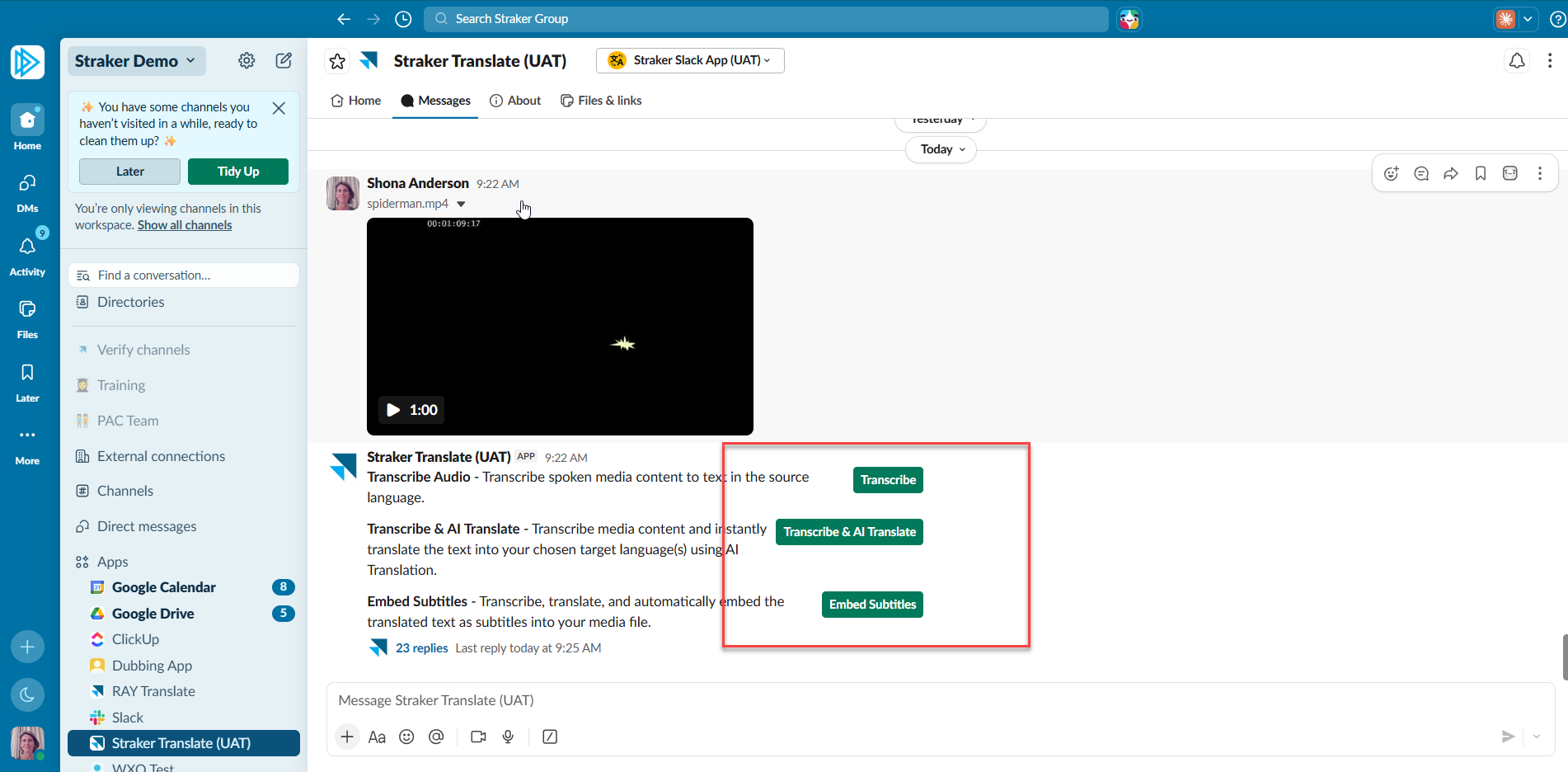
Users have three media file options: Transcription, Transcribe & AI Translate, or Embed Subtitles. Each option returns your files transcribed, AI translated, and with subtitles embedded, as applicable to that workflow.
Accepted File Formats: mp3, mp4, mpeg, mpga, m4a,wav and webm.
Maximum File size: 1 GB
Workflows: Media Transcription, Transcribe & AI Translate, and Embed Subtitles.
Getting a quote before you start
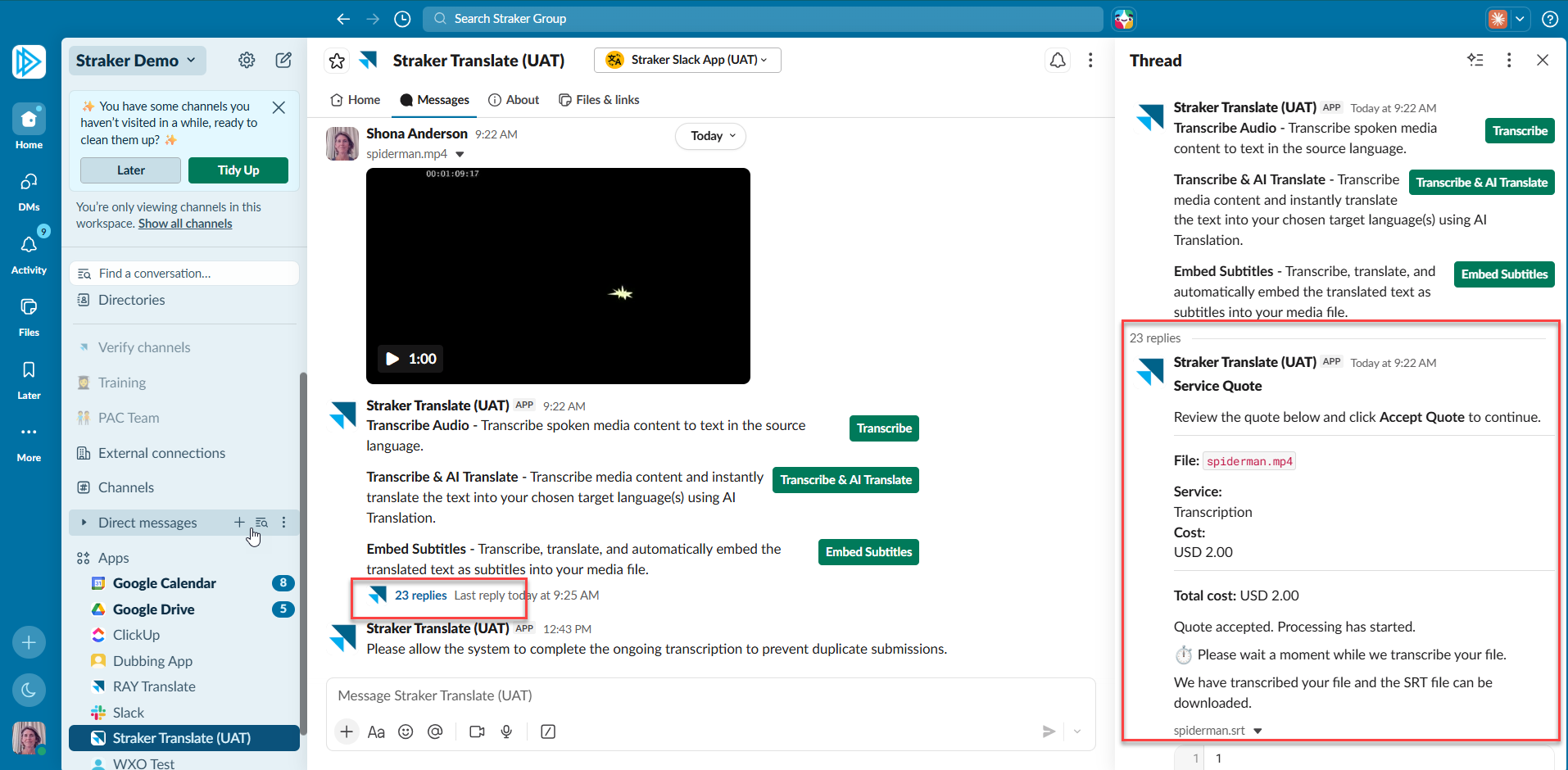
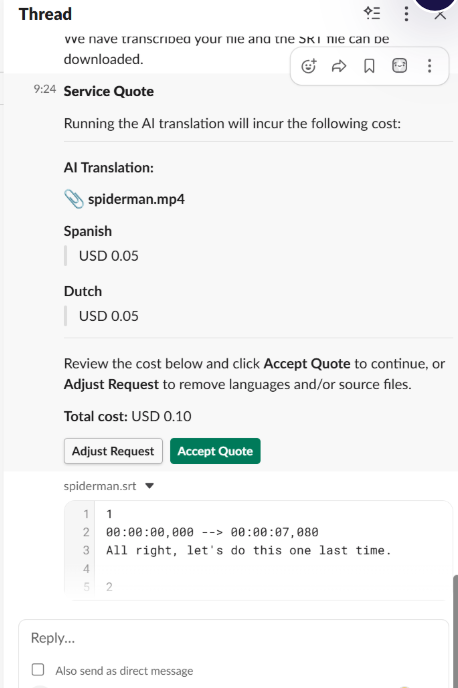
Before any of the three media workflows begins, you'll be shown a quote for the cost of the work and asked to accept it before processing starts. For Transcribe & AI Translate or Embed Subtitles options, you can also adjust your quote with Adjust Request to deselect any file/language combination you don't want processed. Selections are independent per file, so you can keep some target languages and remove others without affecting the rest of the request. Deselecting every combination on a file cancels that file's quote entirely.
1. Upload your media file into the message pane and choose Transcription (transcription only), Transcribe & AI Translate (transcription plus AI translation), or Embed Subtitles (transcribe, translate, and burn the subtitles directly into your video).
2. Transcription, AI Translation, and Embed Subtitles quotes are shown, adjusted, and accepted in a single quote window via threads.
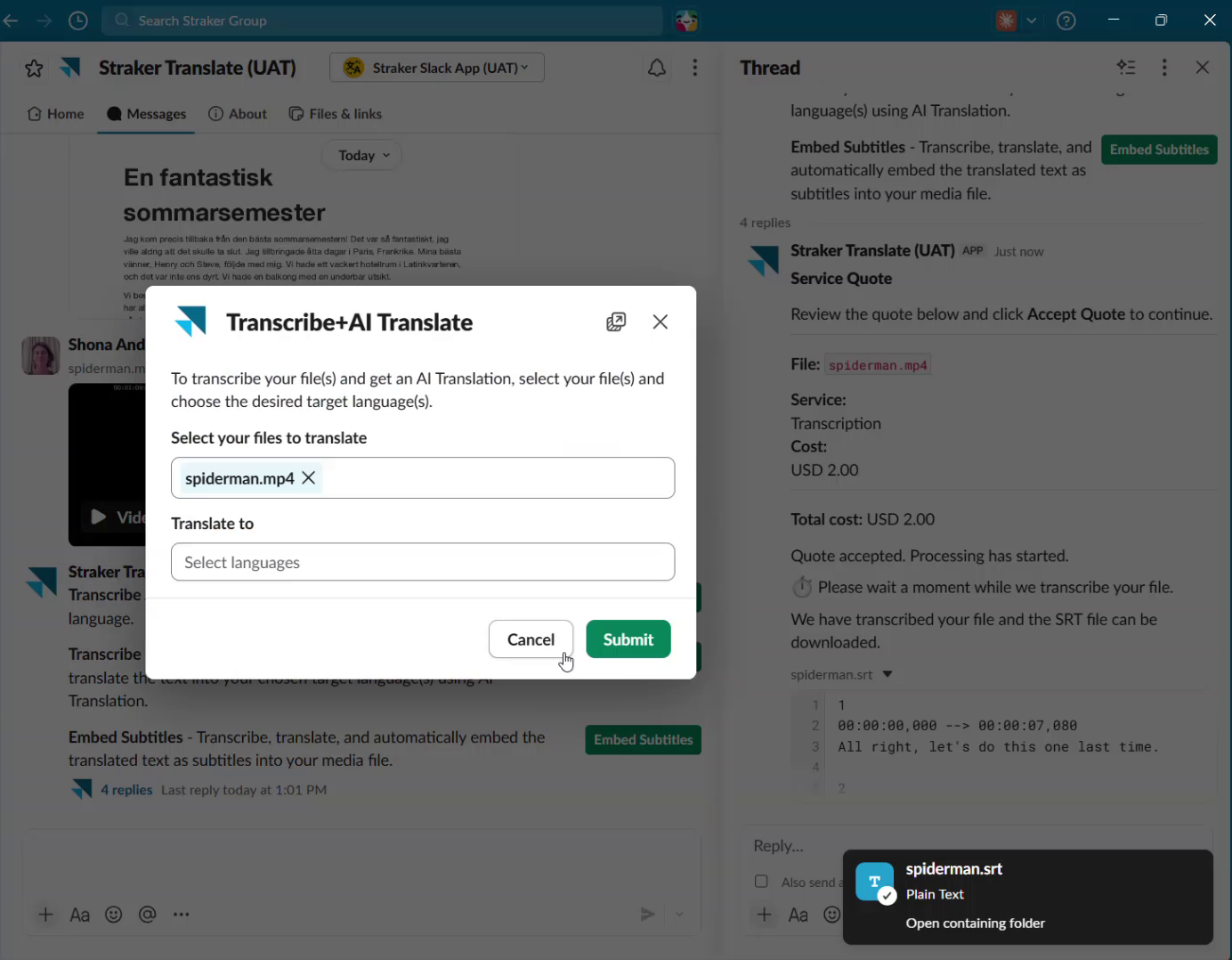
3. Choose your target language(s). If you've chosen a translation workflow, select your file and target language(s) from the modal, then click Submit. AI Translation for Media supports up to 10 target languages in a single request.
4. Review and adjust or accept quote. Transcription costs are shown and accepted together in a single quote window. If you've chosen Transcription & AI Translation or Embed Subtitles, that cost is quoted separately, once transcription has completed — the AI Translation quote can only be calculated after the transcript exists, so it's a second acceptance step. Processing only begins once you've accepted the relevant quote(s); nothing is charged before you accept.
5. Editing your AI translation before embedding. If you'd like to make manual corrections to the AI-translated subtitles before they're embedded into your video:
- Run Transcribe & AI Translate on your media file to generate the translated .srt file(s).
- Download the translated .srt file from the thread.
- Open it in your preferred editor and make any corrections you need.
- Re-upload the edited .srt file to the same Slack thread.
- Click Embed Subtitles. The app uses your edited file rather than generating a new translation, and embeds it directly into your media file.
This is useful if you want full control over subtitle wording or timing before it's burned into the final video.
Note: If you submit the same file and language combination more than once within 24 hours, the app will block the duplicate submission rather than generate a new quote.
For VLC and QuickTime players, the subtitles will be embedded directly into the videos.
For other media players, download the SRT files from the Media Feature in Straker Translate to view the subtitles.
Supported Languages for AI Translation
| Afrikaans (af) | Gujarati (gu) | Persian (fa) |
| Albanian (sq) | Haitian Creole French (ht) | Polish (pl) |
| Amharic (am) | Hebrew (iw) | Portuguese (pt) |
| Arabic (ar) | Hindi (hi) | Portuguese (pt-br) |
| Armenian (hy) | Hungarian (hu) | Punjabi (pa) |
| Assamese (as) | Icelandic (is) | Romanian (ro) |
| Basque (eu) | Indonesian (id) | Russian (ru) |
| Belarusian (be) | Irish Gaelic (ga) | Sanskrit (sa) |
| Bengali (bn) | Italian (it) | Serbian (sr) |
| Bosnian (bs) | Japanese (ja) | Sesotho (st) |
| Bulgarian (bg) | Javanese (jw) | Sinhala (si) |
| Catalan (ca) | Kazakh (kk) | Slovak (sk) |
| Cebuano (Binisaya/Visayan) (ceb) | Khmer (km) | Slovenian (sl) |
| Chichewa (ny) | Kirghiz (ky) | Somali (so) |
| Chinese Simplified (zh-CN) | Korean (ko) | Spanish (es) |
| Chinese Traditional (zh-TW) | Kyrgyz (ky) | Spanish (Latin America) (es-419) |
| Classical Greek (el) | Lao (lo) | Sundanese (su) |
| Croatian (hr) | Latin (la) | Swahili (sw) |
| Czech (cs) | Latvian (lv) | Swedish (sv) |
| Danish (da) | Lithuanian (lt) | Tagalog (tl) |
| Dhivehi (dv) | Macedonian (mk) | Tajik (tg) |
| Dutch (nl) | Malagasy (mg) | Tamil (ta) |
| English (en) | Malay (ms) | Thai (th) |
| Esperanto (eo) | Malayalam (ml) | Turkish(tr) |
| Estonian (et) | Maltese (mt) | Ukrainian (uk) |
| Finnish (fi) | Maori (mi) | Urdu (ur) |
| French (fr) | Marathi (mr) | Uzbek (uz) |
| French Canadian (fr-ca) | Mongolian (mn) | Vietnamese (vi) |
| Georgian (ka) | Nepali (ne) | Welsh (cy) |
| German (de) | Norwegian (no) | Zulu (zu) |
| Greek (el) | Oriya (or) | |
| Guaraní (gn) | Pashto (ps) |