
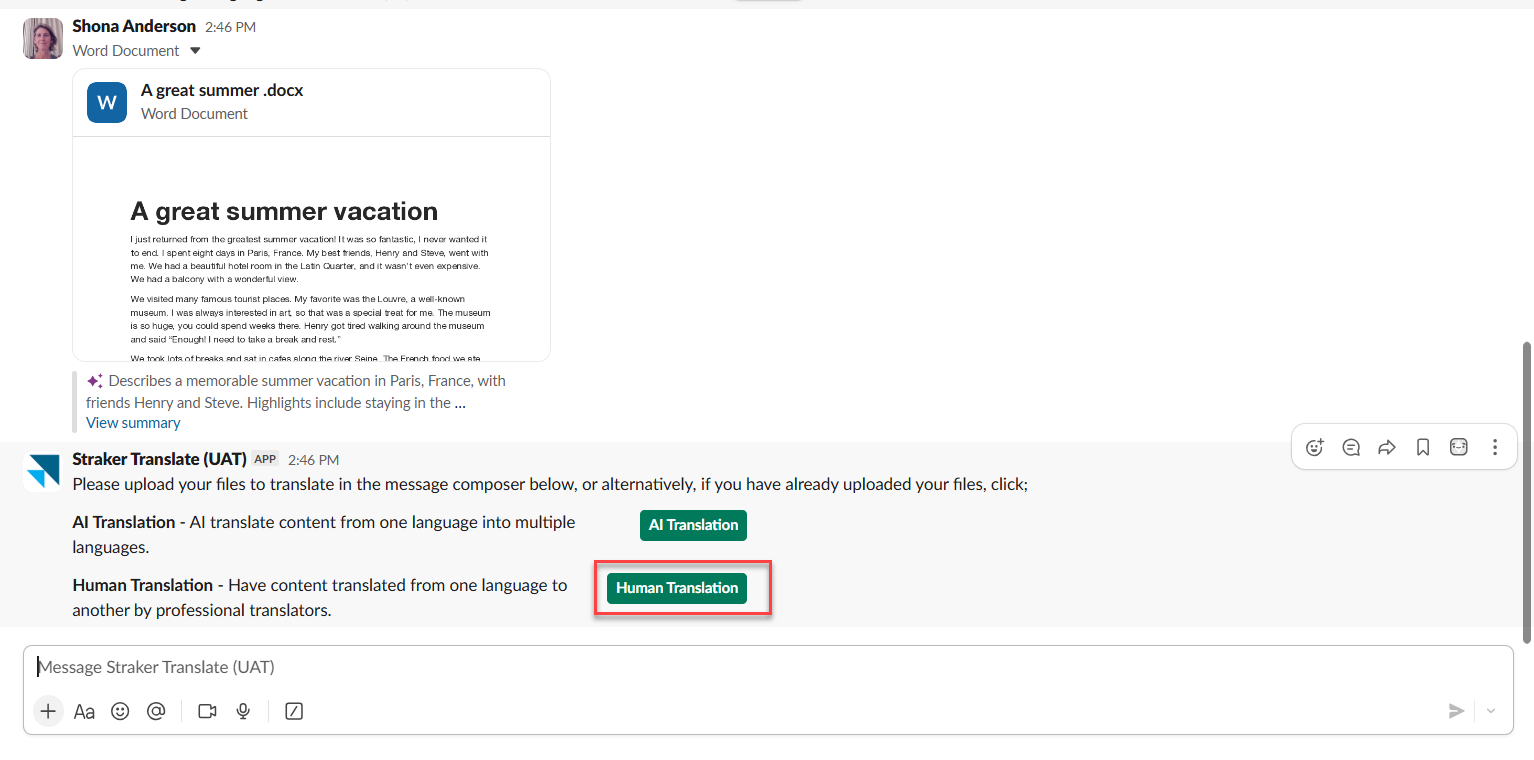
1. Select your service: the app responds "Please upload your files to translate in the message composer below, or alternatively, if you have already uploaded your files, click;" with two options — AI Translation and Human Translation. Select Human Translation.
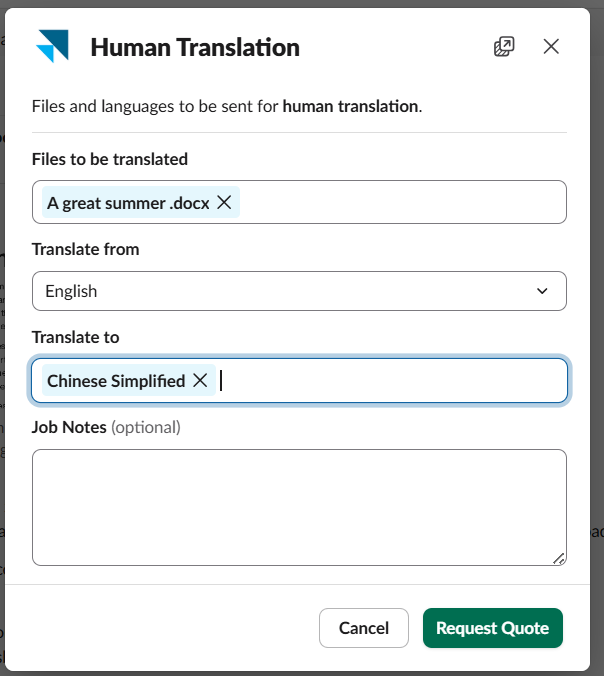
2. Configure your request: a Human Translation modal appears — "Files and languages to be sent for human translation" — with your file(s) pre-filled, and fields for Translate from / Translate to. Select your languages and click Request Quote (or Cancel to back out).
3. Request received: the app confirms "Your request is being processed. You will receive a summary to review before you finalise the order."
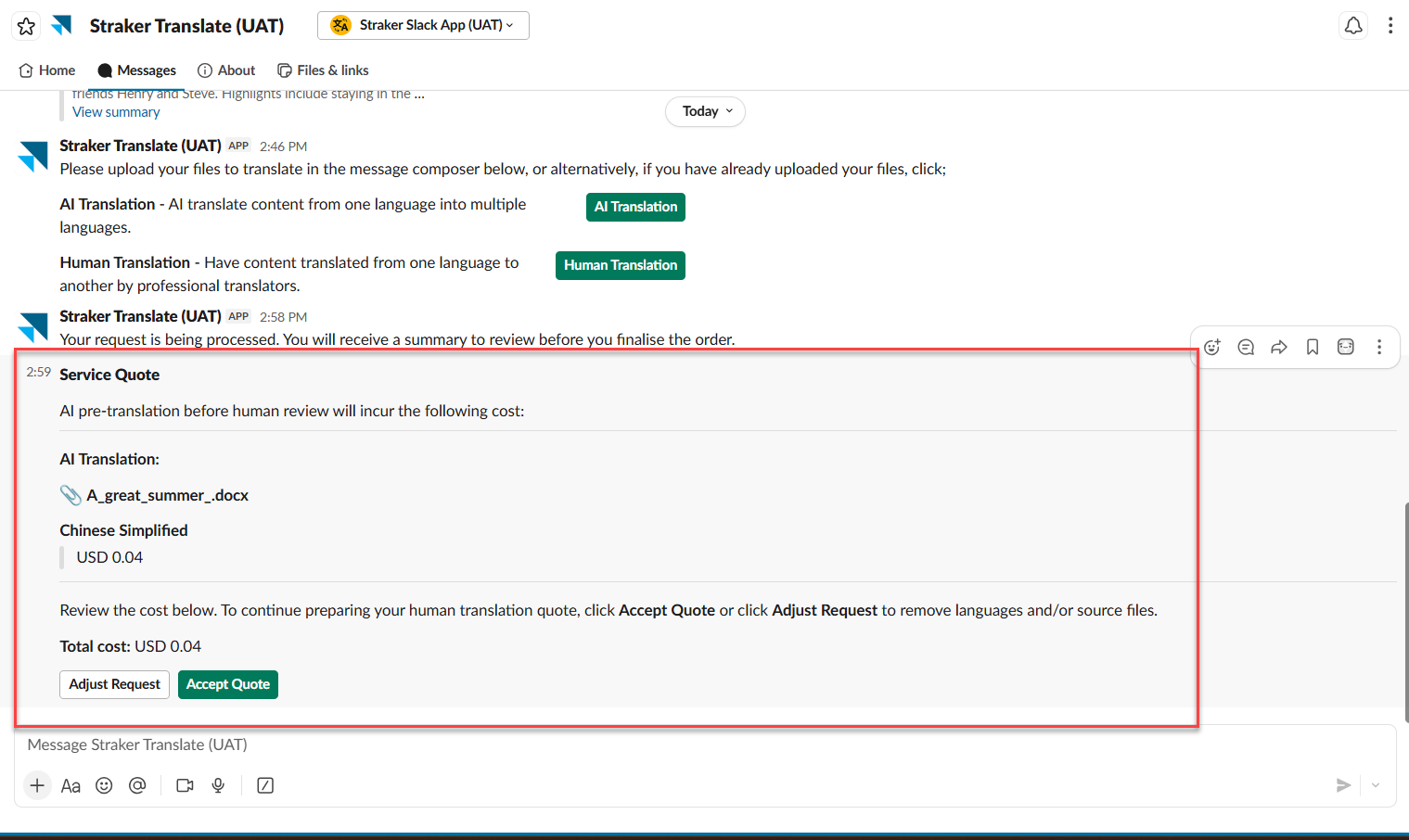
4. Accept the AI Translation quote: a Service Quote message appears showing the AI Translation cost per target language and a Total cost, with Adjust Request and Accept Quote buttons. Accepting removes both buttons and proceeds with AI translation.
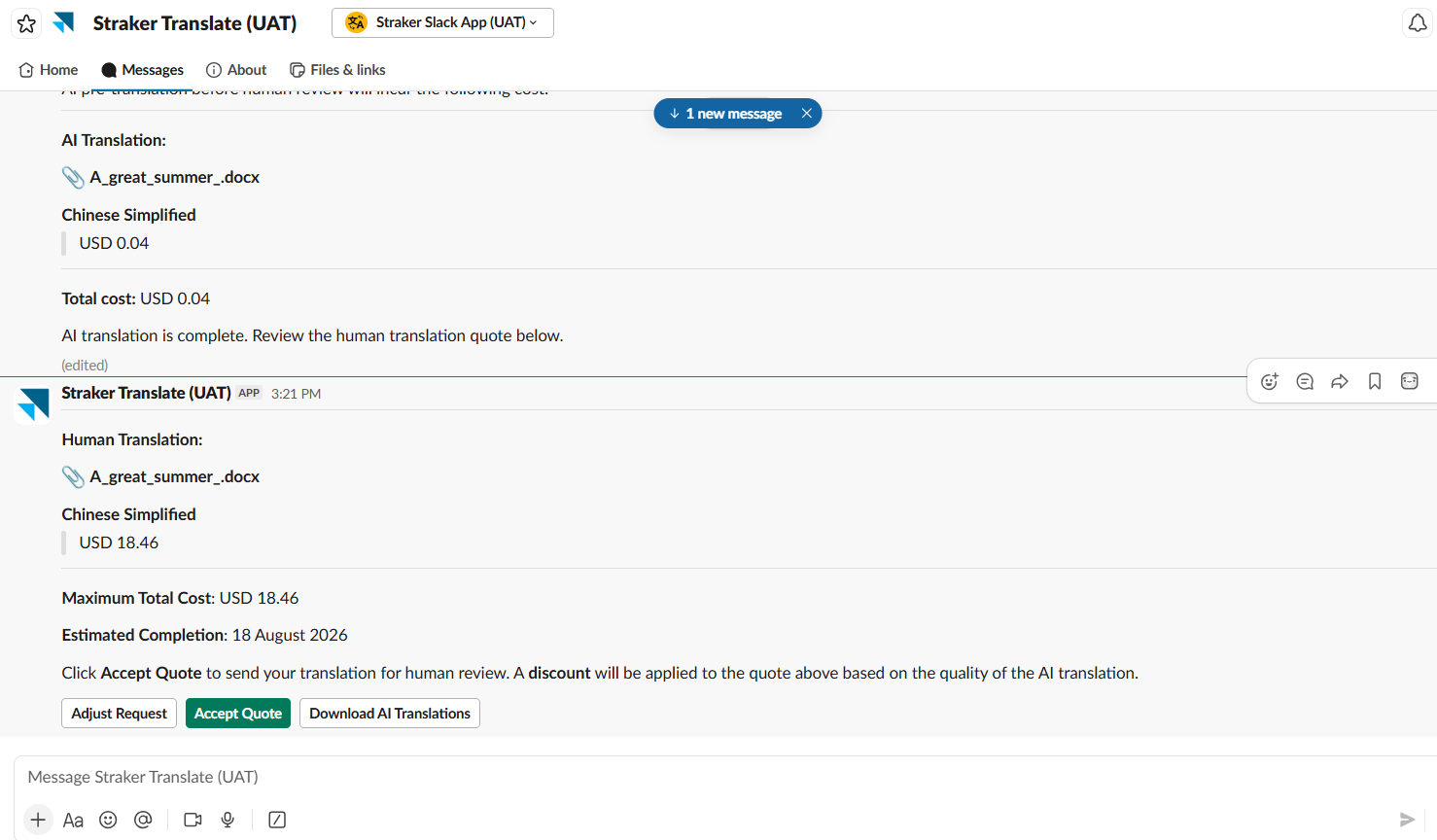
6. Finalize the request: select Accept Quote on the Human Translation quote. The app confirms your translation has been submitted to the linguist network, referring you to the estimated completion date.
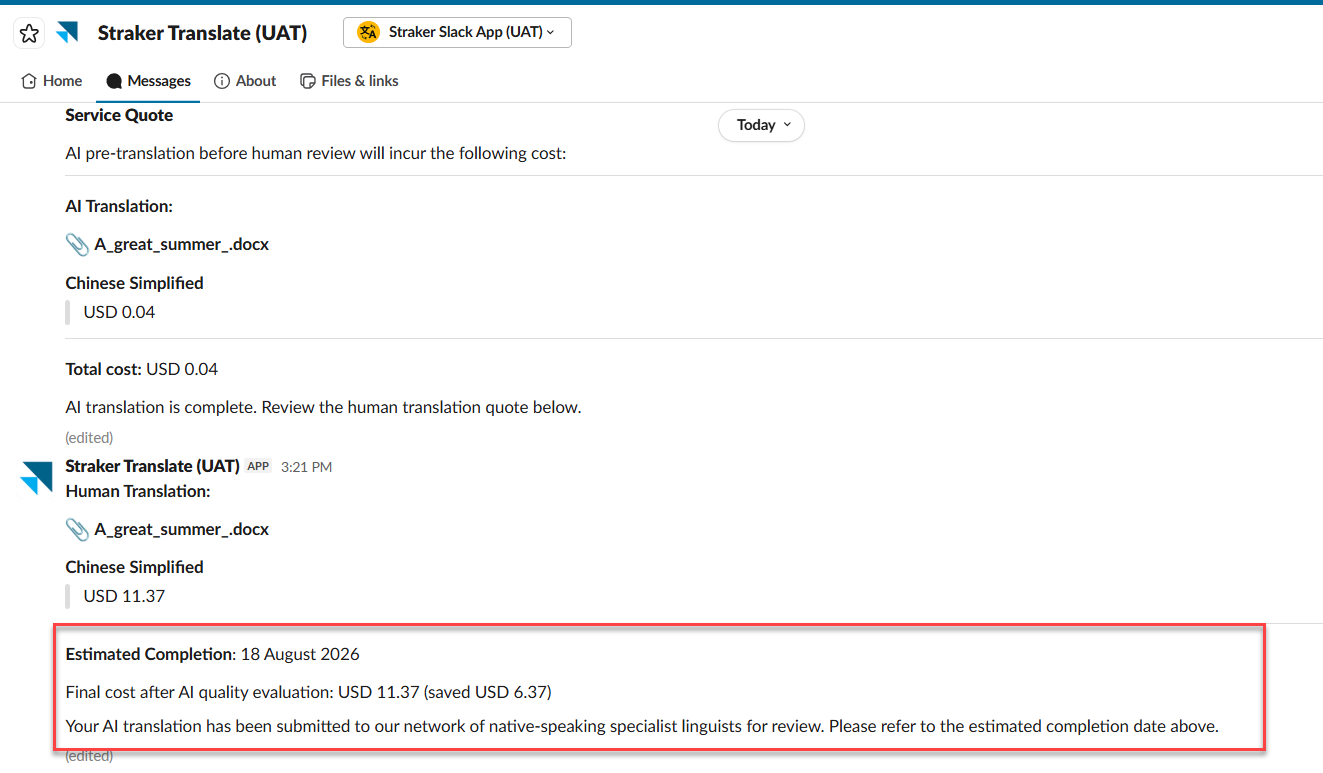
7. Automatic Quality Evaluation (IBM workspaces only): after acceptance, Quality Evaluation runs automatically to assess AI translation quality and apply a discount to the final cost based on the AI translation quality. There's no separate service to select or quote to accept for this step.
8. Download your translation once complete.
Note:
.xlf or .xliff 2.1 is currently not supported.